AULA F75 owners, People who live on keyboard shortcuts, AutoHotkey users
Runs on
Windows 10 and 11, with an AULA F75 over USB
In numbers
25 fps screen sync, streamed live and never written to the keyboard’s flash
Overview
F75 Studio sets the AULA F75’s lighting from Windows: the built-in effects, colour, brightness and speed, or a colour for every key, with a live preview of the board. Screen sync turns the keys into an ambilight for whatever is on screen. A visual builder writes your shortcuts as an AutoHotkey v2 script and runs it. It lives in the tray. Free and MIT-licensed; not affiliated with AULA.
The challenge
The F75’s lighting lives in AULA’s own software, and nothing else can reach it: there is no public SDK. Shortcuts are a separate job again, in AutoHotkey scripts written by hand.
The lighting is set from the vendor app or not at all.
No SDK, so no other tool can drive the keys.
Hotkeys mean learning AutoHotkey syntax and keeping the scripts running.
The approach
We reverse-engineered the F75’s USB lighting protocol and documented it in the repository. F75 Studio speaks it directly, with every write checked against an allowlist of known-safe commands and the keyboard’s identity; firmware and other risky commands are never sent. Screen sync streams live frames that never touch the keyboard’s flash, and the hotkey builder turns a recorded key and a chosen action into an AutoHotkey v2 script.
Lighting from Windows, without the vendor software
Keys that follow the screen, live
Hotkeys built visually, run by AutoHotkey v2
Free, open source, in the tray
25 fpsscreen sync, streamed live and never written to the keyboard’s flash
How it works
01
Plug in the F75
Connect the keyboard by USB cable. Over Bluetooth or the 2.4 GHz dongle, settings are saved but not sent.
02
Pick the lighting
Choose an effect, a colour or per-key colours, or turn on screen sync; save it as a profile.
03
Build your hotkeys
Record a key, choose what it does, and Apply. F75 Studio writes hotkeys.ahk and runs it with AutoHotkey v2.
04
Leave it in the tray
Switch profiles from the tray menu or a hotkey, and manage your other scripts from the same app.
Screens
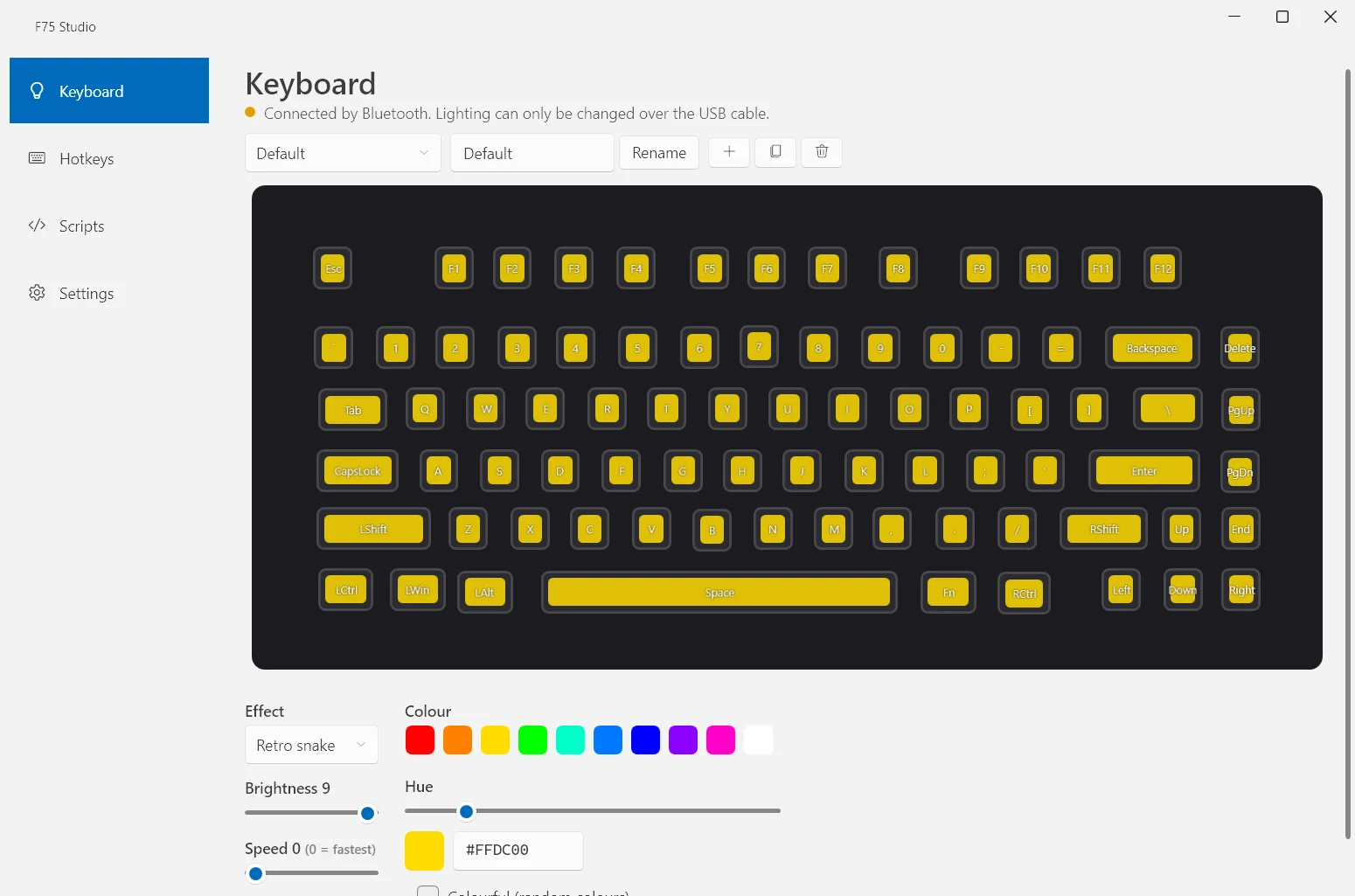
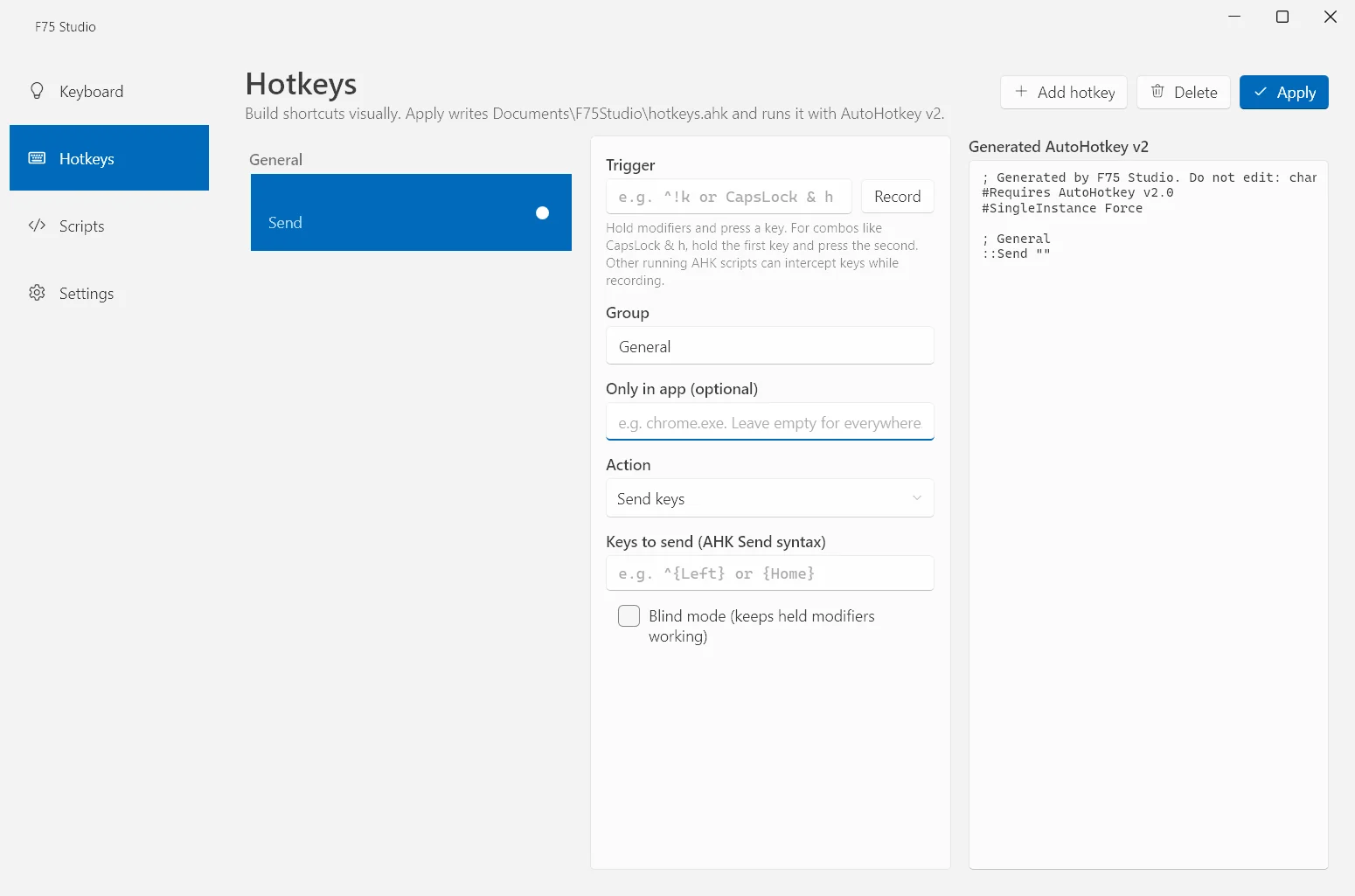
The Keyboard page: a live preview of the F75 lit in yellow with the Retro snake effect, the profile picker, and colour, brightness and speed below.The Hotkeys builder: a trigger to record, an optional app, the action, and the AutoHotkey v2 code it generates on the right.
What it does
Lighting editor
The keyboard’s own effects — Static, Breathing, Rainbow, Ripples, Retro snake, Neon stream, Twinkling stars, Sine wave and more — with colour, brightness and speed, and a live preview of the board. Or give every key its own colour.
Screen sync
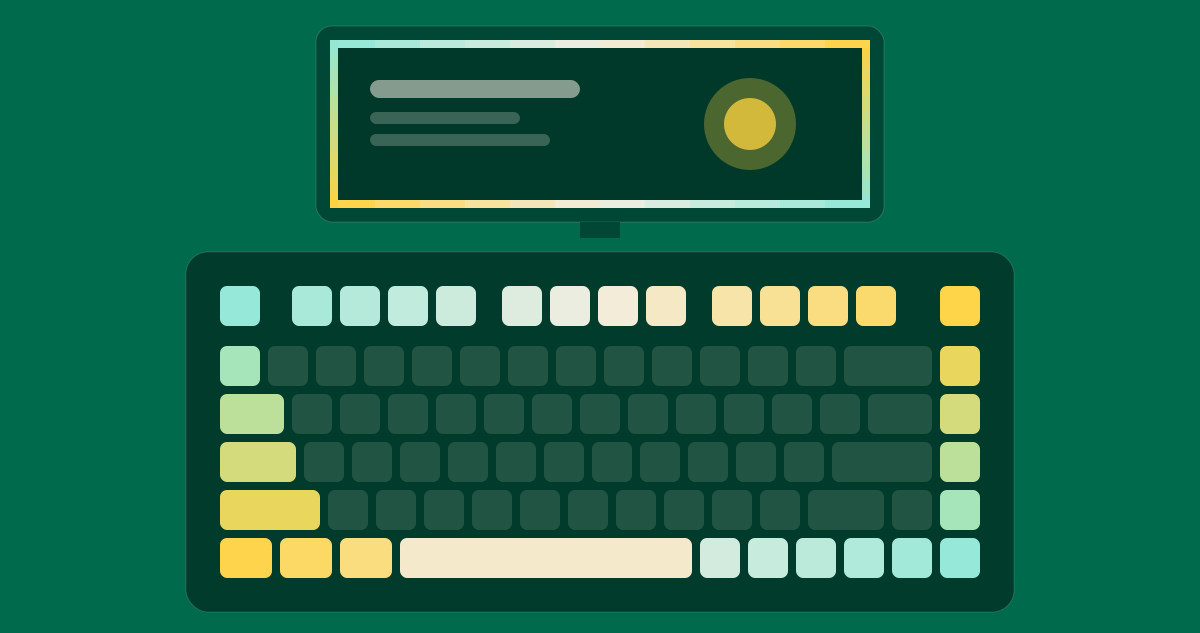
Edges mode works like an ambilight: the F-row follows the top of the screen, the bottom row the bottom, the side columns the left and right. Blur mode gives each key the blurred colour of the matching spot on screen.
Lighting profiles
Save setups as profiles and switch between them from the app, the tray menu, a hotkey, or with --profile on the command line.
Visual hotkey builder
Record a trigger and pick an action: send keys, remap a key, type text, run a program or URL, media keys, switch lighting profile, disable a key, or your own AHK code — everywhere or in one app only.
Script manager
Your other .ahk scripts in one list: start, stop and edit them, run them at startup, with automatic backups.
Safe by design
Every write passes an allowlist of known-safe commands and an identity check, and screen-sync frames are volatile. The capture is shrunk on the GPU to a tiny image; nothing is saved or sent anywhere.
Who uses it, and for what
AULA F75 owners
Lighting without the vendor app
Set the effect, colour and brightness from a small Windows app, and keep a profile for each mood to switch with a hotkey.
Watching and playing
Films and games with an ambilight
Turn on screen sync and the keys pick up the colours at the edges of the picture, live.
Keyboard-heavy work
Shortcuts without writing scripts
Remap a key, type a snippet or launch an app from a recorded shortcut, and read the AutoHotkey code it generates.
Built with
App
.NET 8
WPF
WPF-UI (Fluent)
Keyboard
USB HID
Documented lighting protocol
Command allowlist
Screen sync
DXGI Desktop Duplication
GPU downscaling
Hotkeys
AutoHotkey v2
Quality
338 automated tests
What we did
Product design
Desktop app
USB HID reverse engineering
Screen capture
AutoHotkey tooling
Open source
Common questions
Is it free?
Yes, and open source under the MIT license.
Is it made by AULA?
No. F75 Studio is independent and not affiliated with AULA. It talks to the keyboard through a protocol we reverse-engineered and documented in the repository.
Can it damage my keyboard?
Every write is checked against an allowlist of known-safe lighting commands and the keyboard’s identity; firmware and other risky commands are never sent. Screen sync uses live frames that are not written to the keyboard’s flash. It is in beta: the lighting has not yet been checked on every firmware.
Does it work over Bluetooth or the 2.4 GHz dongle?
Lighting changes need the USB cable. Over Bluetooth or the dongle, your settings are saved but nothing is sent to the keyboard.
Do I need AutoHotkey?
For hotkeys and the script manager, yes: they run with AutoHotkey v2. Apply writes Documents\F75Studio\hotkeys.ahk and starts it.
Is my screen recorded?
No. Screen sync reads the screen with DXGI Desktop Duplication, shrinks it on the GPU to a tiny image for the key colours, and saves or sends nothing.
Try F75 Studio
Open the product, or talk to us about building something similar for your team.